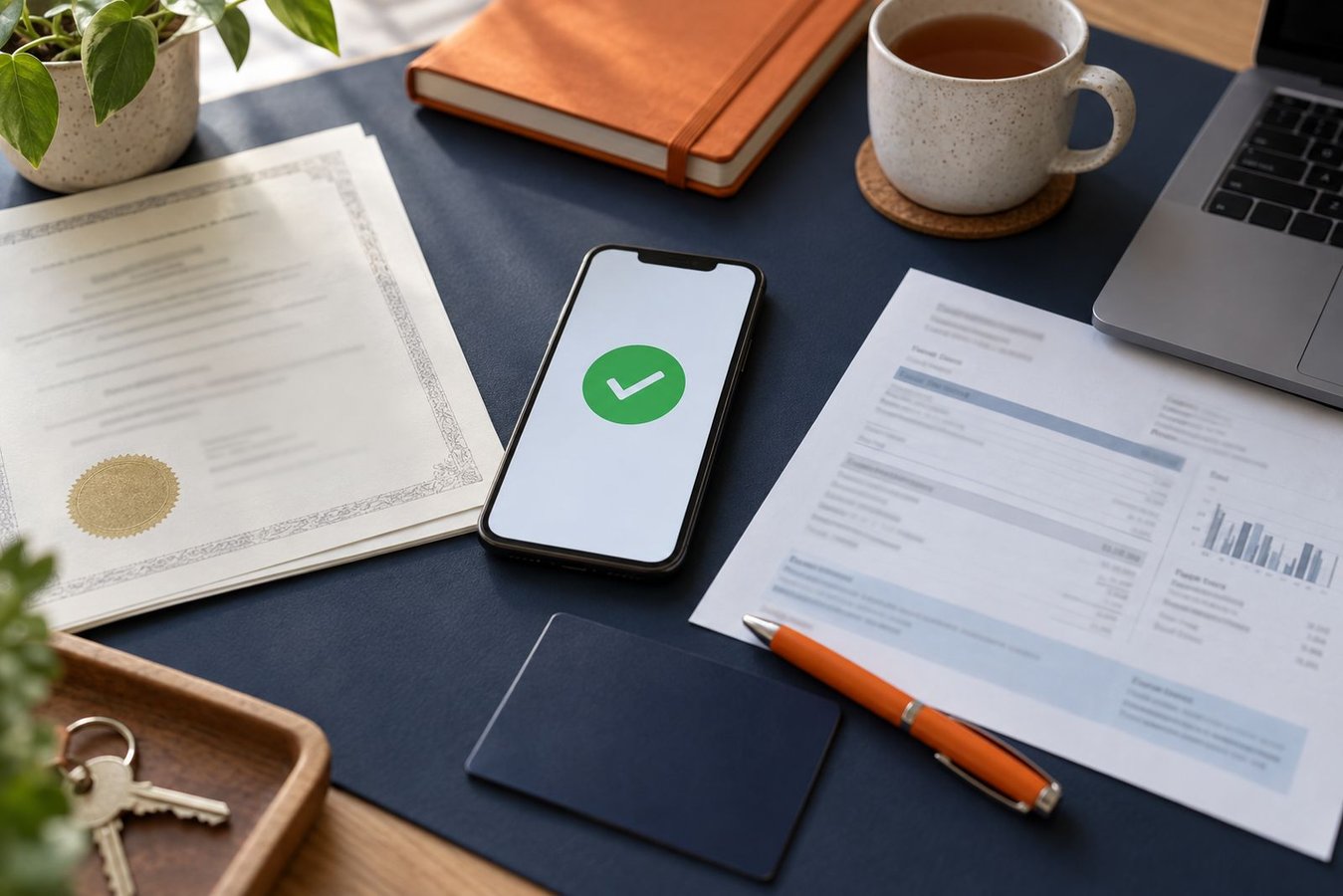
To send WhatsApp messages at scale, Meta needs to verify your business. You do it in the Security Centre of Meta Business Suite: enter your legal business name, address, phone number and website exactly as they appear in your company records, upload an official document if Meta asks for one, and confirm the connection by email, phone, WhatsApp or your domain. Meta says a decision "may take up to 14 working days". Discover Digital, a Meta Tech Provider and HubSpot Platinum Solutions Partner in Theale, Reading, takes clients through it as part of every WhatsApp project. This guide covers the steps, the documents and the reasons it stalls.
Why business verification matters
You can start on the WhatsApp Business Platform before you are verified, but only just. Verification is what lets you grow:
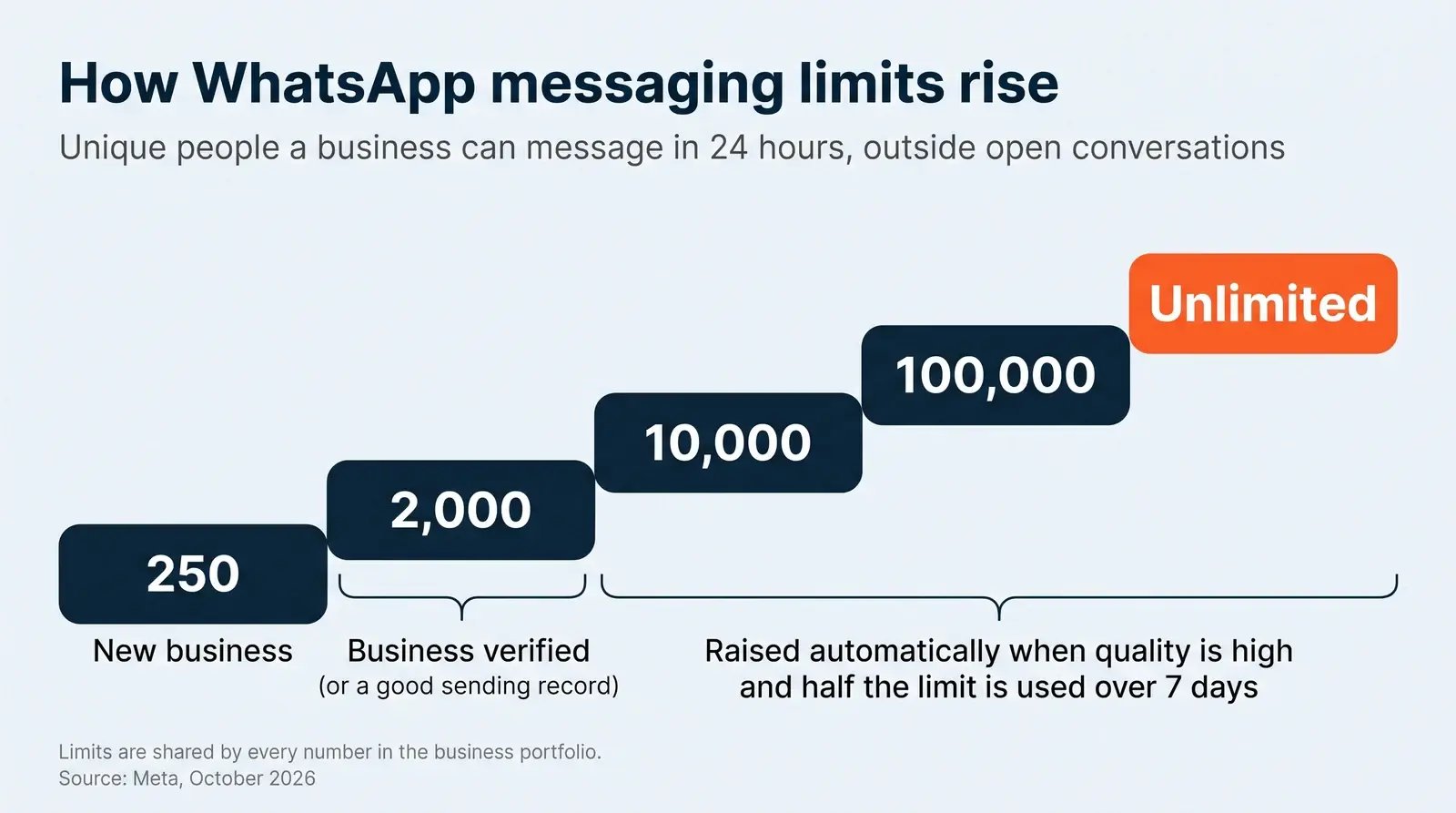
- Messaging limits. A new business portfolio can message 250 unique people a day outside open conversations. Verifying your business is one way to raise that to 2,000. After that, Meta raises the limit automatically to 10,000, 100,000 and then unlimited, as long as your messages keep a high quality rating and you use at least half of your limit over seven days (Meta). Limits are shared by every number in the portfolio.
- More phone numbers. New portfolios can register two business numbers; verification raises the cap to 20.
- The blue tick. An Official Business Account needs a verified business, at least 30 days on the platform, two-step verification and an approved display name (Meta).
Before you start
- You need full control of your business portfolio in Meta Business Suite.
- Your legal business name, address and phone number must "exactly match the details of your legal business entity" (Meta). For a UK company, the name and address should match Companies House.
- Your website must load over HTTPS, and it helps when it shows the same name, address and phone number.
- Have an official document ready in case Meta cannot find your business in public records.
Step by step
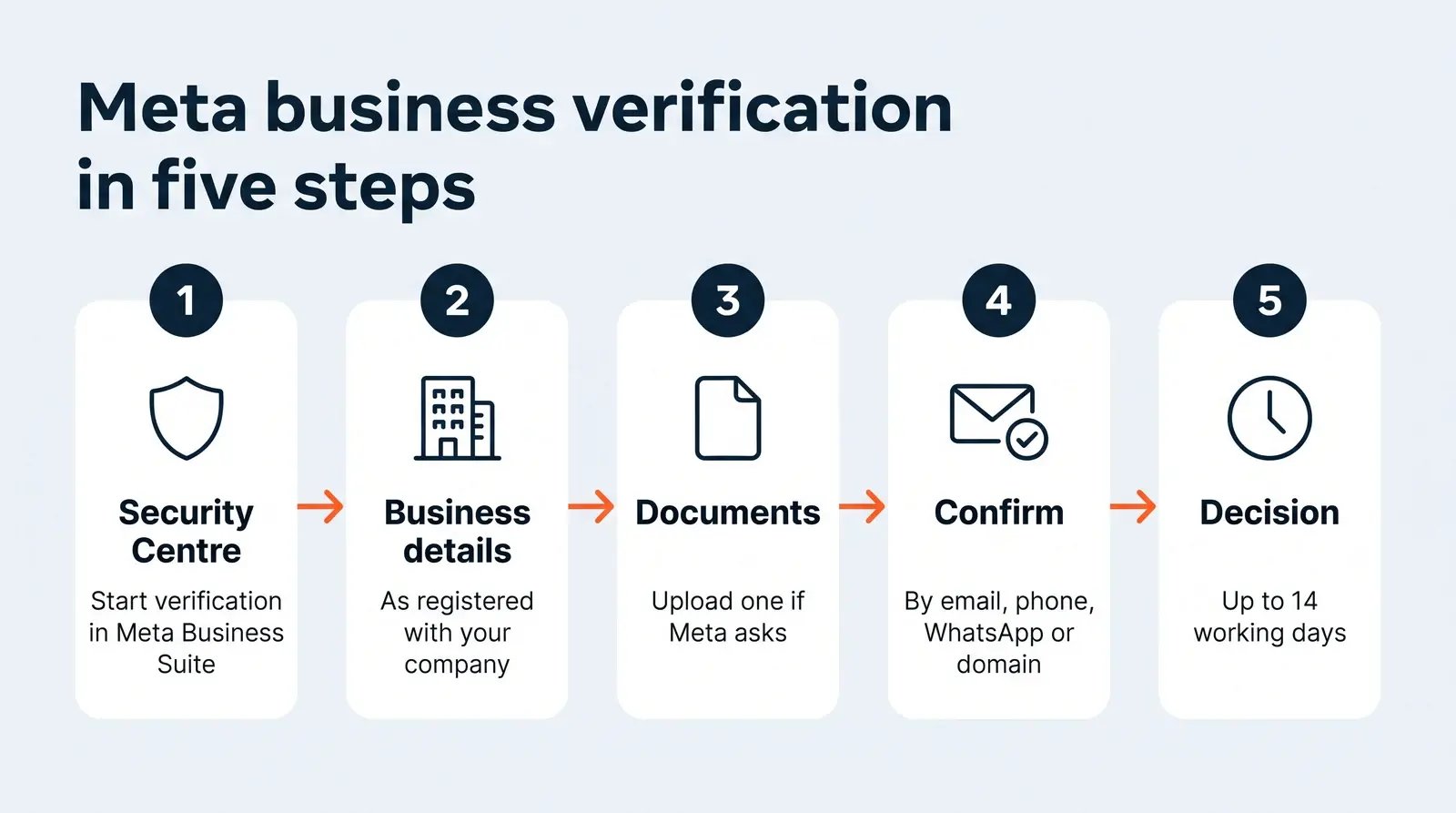
- Open the Security Centre. In Meta Business Suite, go to the Security Centre and choose Start verification.
- Enter your business details. Legal name, address, phone number and website, exactly as they are registered.
- Upload a document if asked. If Meta cannot match your details, upload an official document (see below).
- Confirm the connection. Meta confirms you are linked to the business by email, phone, text message, WhatsApp message or domain verification.
- Wait for the decision. Meta says a decision may take up to 14 working days. If you edit your business details afterwards, you have to verify again.
Documents Meta accepts
Documents must show your legal business name and your official address or phone number, and must not have expired (Meta):
- a certificate or articles of incorporation;
- a business registration or licence document;
- a government-issued business tax document (self-filed tax documents are not accepted);
- a business bank statement;
- a utility bill, but only to confirm your address and phone number, not your legal name.
Meta accepts documents in many languages, including English and Greek.
Why verification stalls
From the projects we have run, verification rarely fails for a serious reason. It stalls on details:
- Details that do not match. A trading name on the website, an old address or a different phone number from the company records.
- A website Meta cannot read. A firewall or security service that blocks Meta's checks, or a site that does not load over HTTPS.
- Domain verification not picked up. The meta tag or DNS record added in the wrong place, or not yet live.
- Permissions. The person doing it does not have full control of the business portfolio.
- Changes halfway through. Editing your business details restarts verification.
After verification: display name and templates
When you register a WhatsApp number you give it a display name, which Meta reviews. It must have a clear relationship with your legal business name, and it cannot be a generic term, include "Official" or "Verified", mention Meta or WhatsApp, or be a web or email address (Meta). Each message template is then approved by Meta before you can send it. Business verification is not the same as Meta Verified and does not give you a verified badge.
How we help
As a Meta Tech Provider, we can set you up on Meta's official WhatsApp Business Platform ourselves. Your business keeps ownership of its WhatsApp Business Account and number, and Meta bills its messaging fees to you directly. We check your details before you submit, help fix the website and domain issues that hold verification up, and plan time for Meta's decisions, then build your templates, workflows and inbox in HubSpot on Flowella, our sister company's app.
See WhatsApp automation and our Meta partnership, or book a call.